
HDC Handbook
Views & Controls
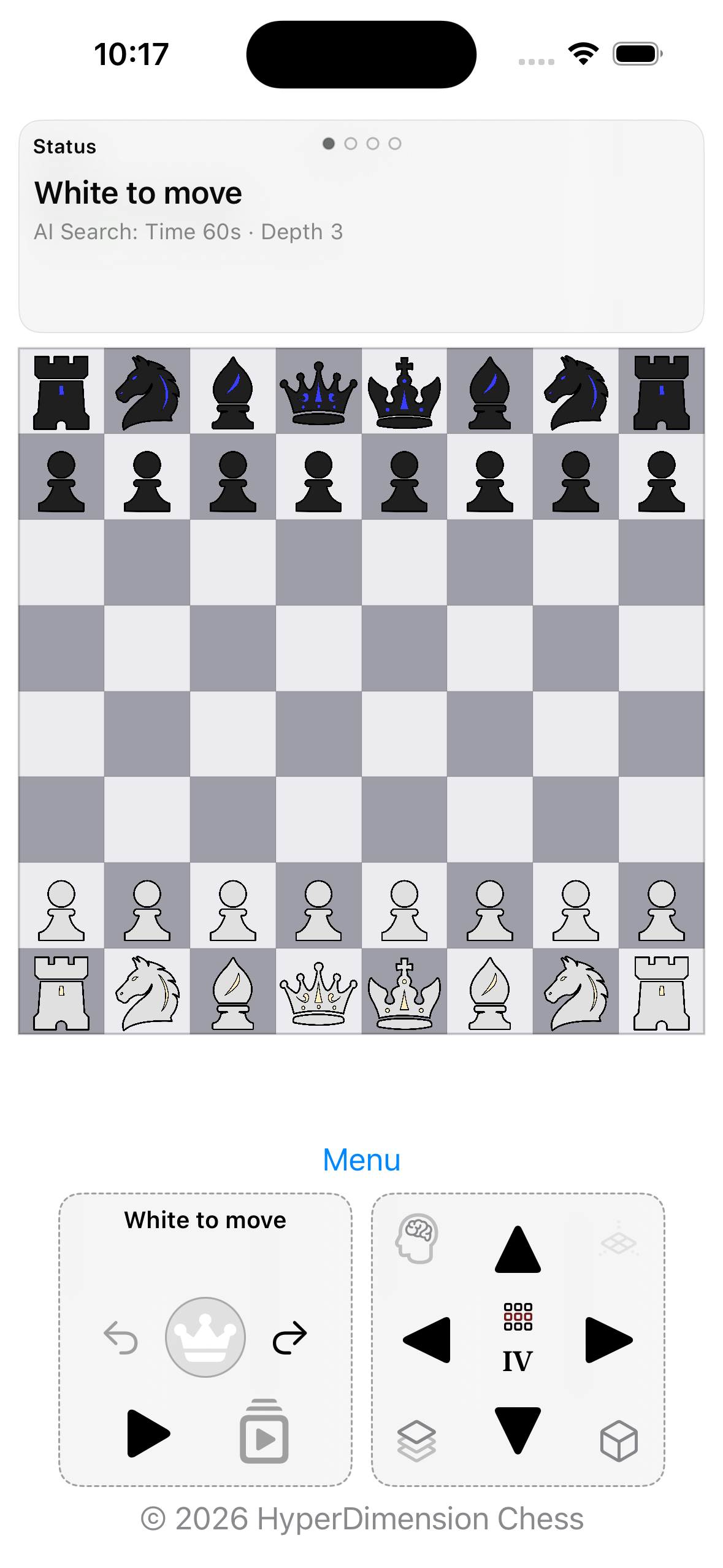
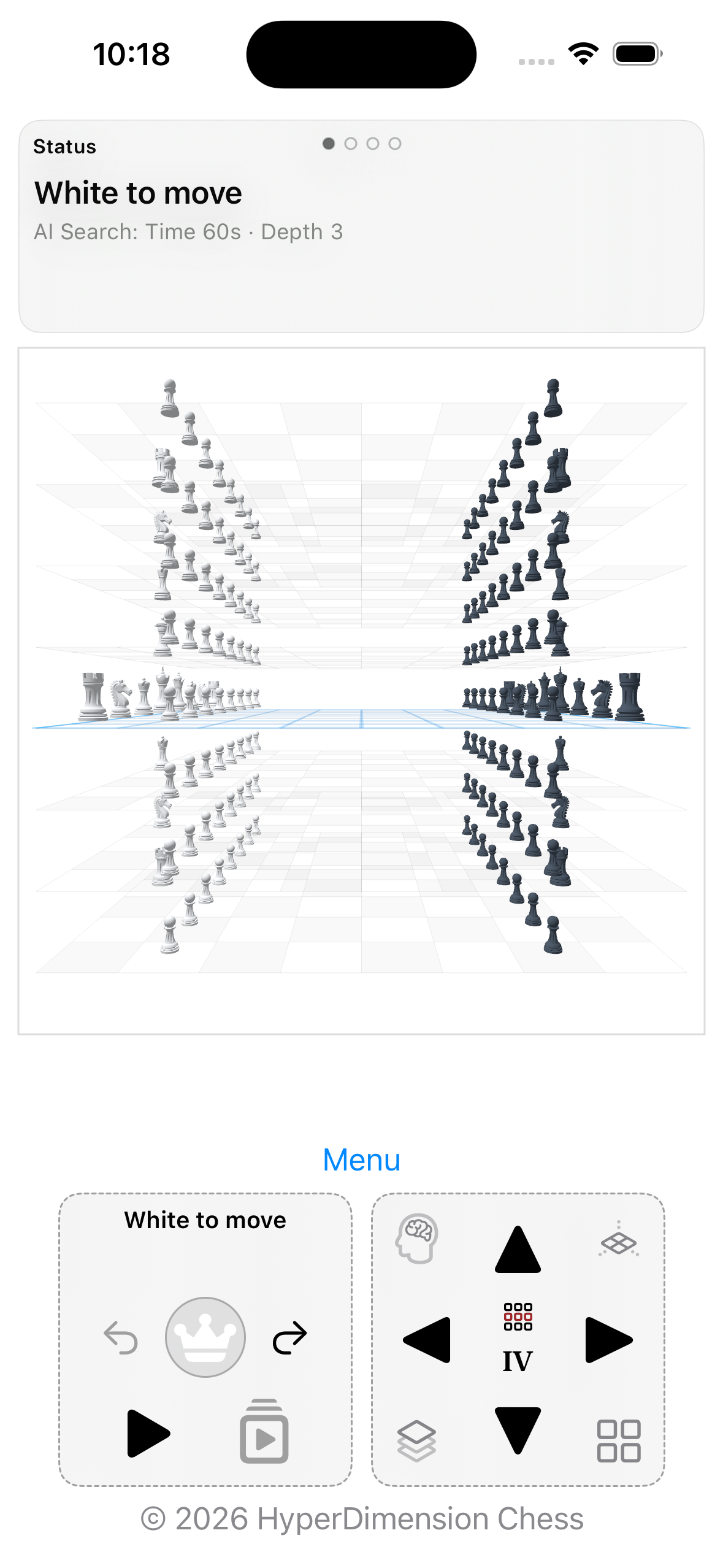
HDC shows the same game state through multiple views. The BoardView is the left 2D board view and the precise input area. The CubeView is the right 3D view of the cube and supports spatial orientation.
Changing views never changes the position itself. It only changes which slice or perspective you are currently looking at.
Interface overview
The overview shows the six main areas of the game interface. The numbered markers in the image are explained below.
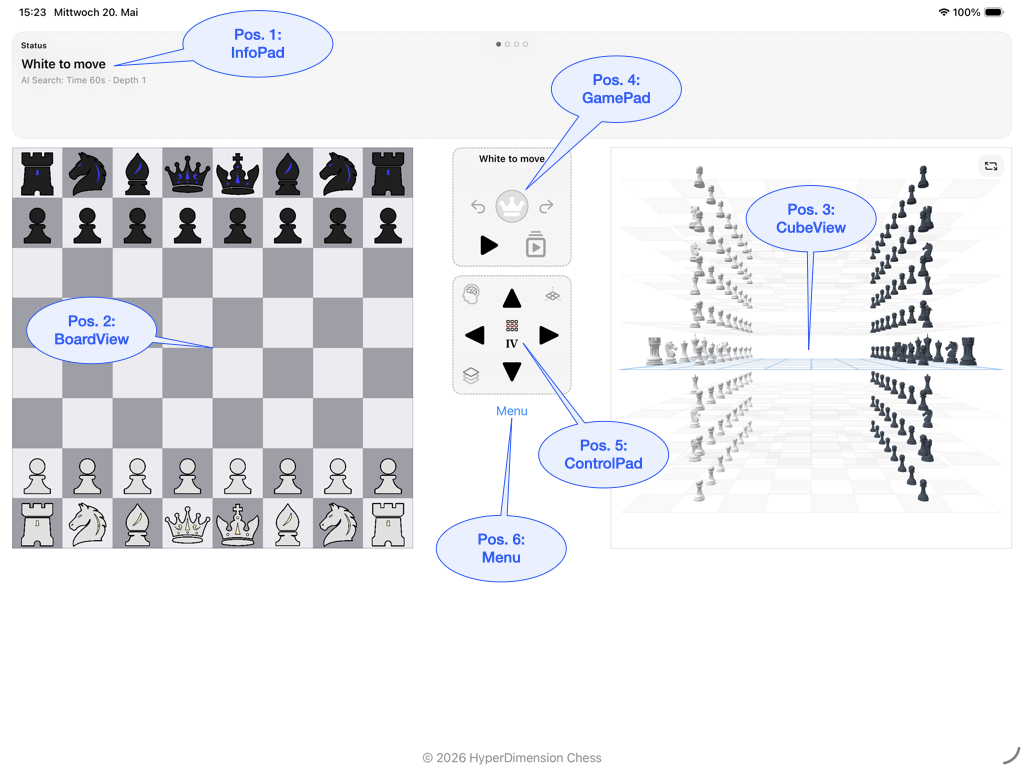
- Pos. 1 InfoPad: status, captured pieces, move list, messages, and optional text move input.
- Pos. 2 BoardView: left 2D board view and primary area for move execution.
- Pos. 3 CubeView: right 3D view of the full cube.
- Pos. 4 GamePad: quick game actions such as Undo, Redo, and AI main actions.
- Pos. 5 ControlPad: switches BoardView slices and gives access to CubeView / AI controls.
- Pos. 6 Menu: access to Game, Help, AI, Appearance, and Settings.
BoardView, CubeView, and modes
The BoardView shows a flat slice through the 3D cube. The CubeView shows the same position spatially. For precise input, the BoardView remains the key area.
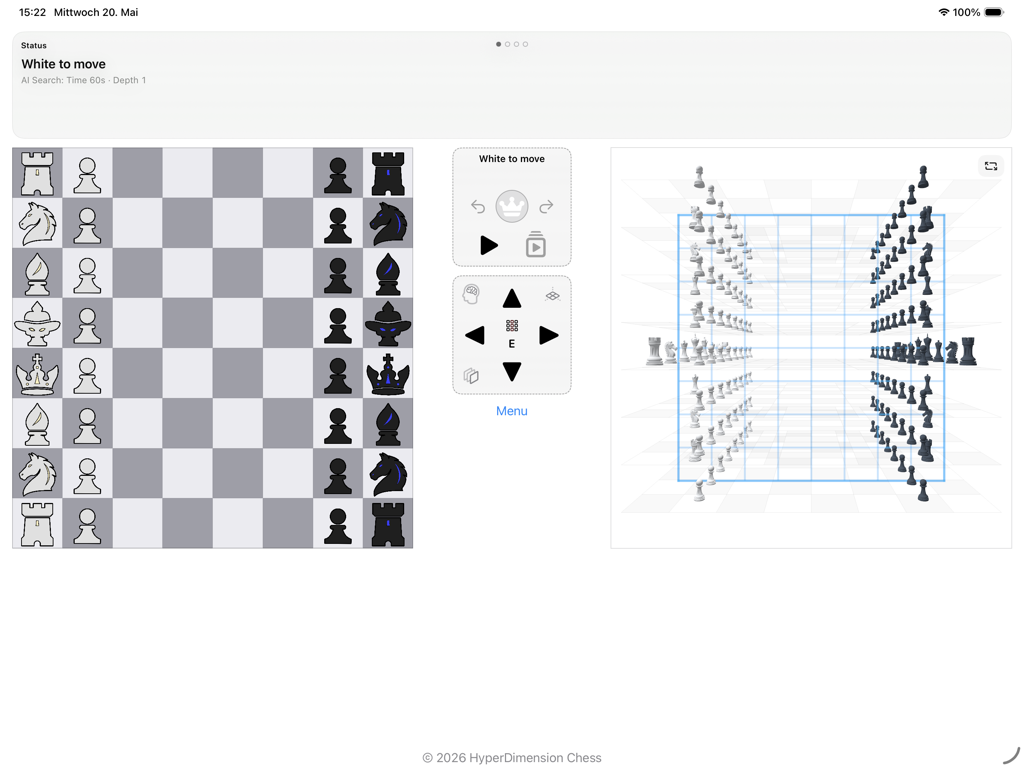
- LayerView: Z is fixed; the view shows file × rank.
- FileView: X is fixed; the view shows rank × layer.
- RankView: Y is fixed; the view shows file × layer. This mode is planned and is not described here as an active feature.
The axes stay simple: X = file, Y = rank, Z = layer.
Selection Preview: reading the markers
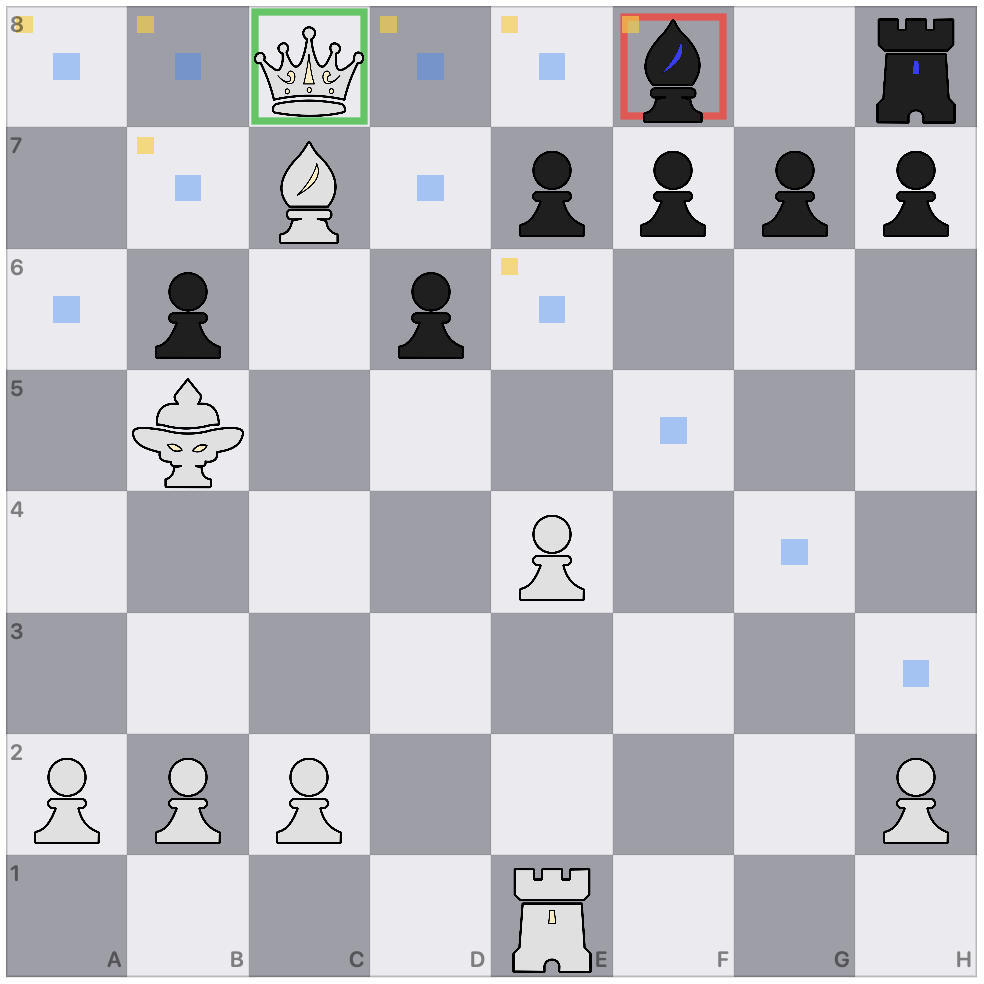
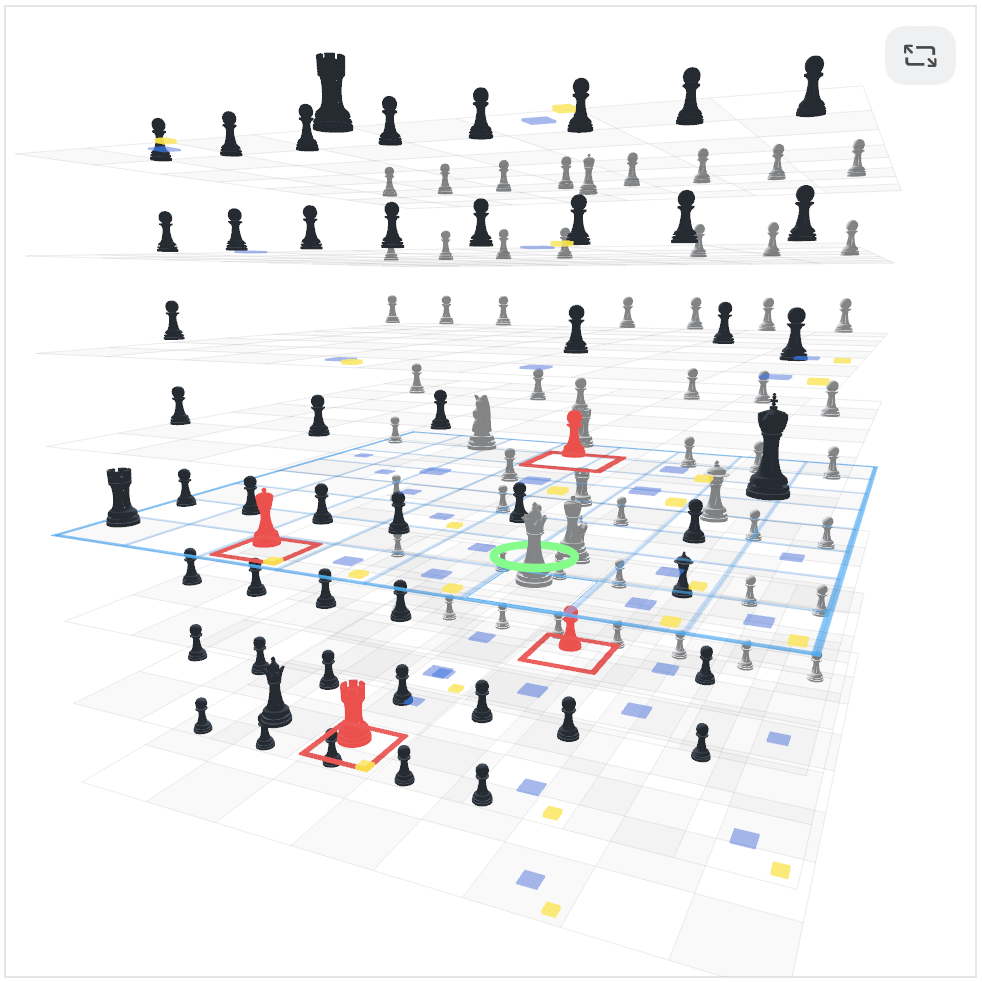
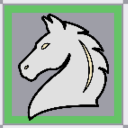
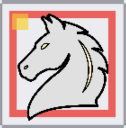
When you select a piece in the BoardView, HDC shows a preview of possible targets, capture targets, and squares covered by the opponent. This preview does not change the position. A move is made only when you choose a target in the BoardView. Selection Preview is not AI analysis.


Narrow and wide
Wide shows BoardView and CubeView side by side. Narrow focuses either BoardView or CubeView so controls remain readable on smaller screens.
InfoPad
The InfoPad groups information about the current game. Its panel order stays stable.
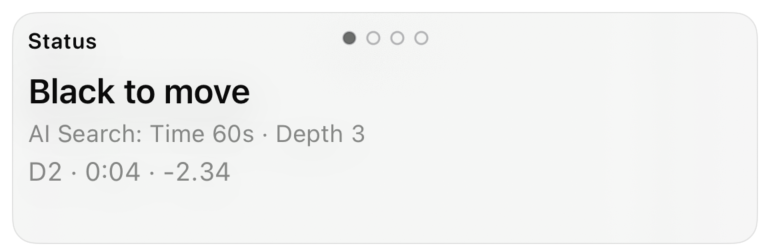
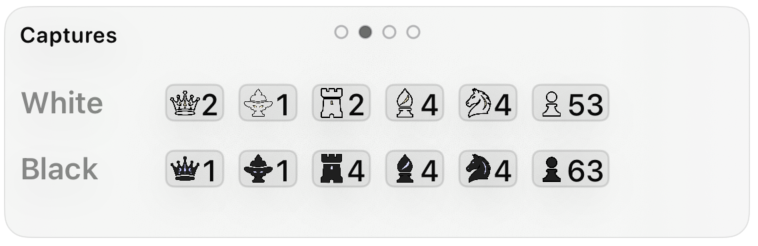
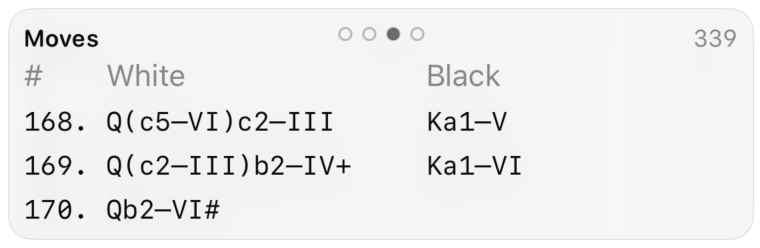

IP5 Move Input is optional and appears only when text move input is enabled.
GamePad
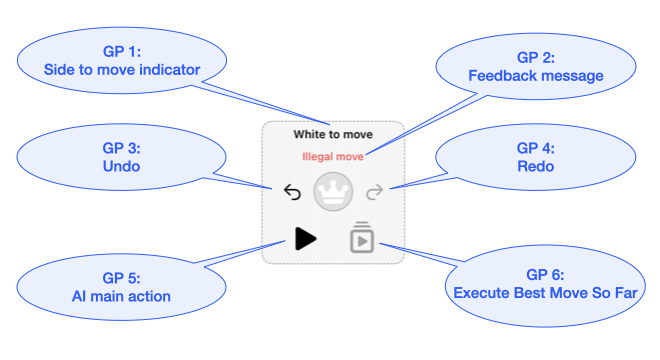
- GP1 / GP2: show whose turn it is and which message currently matters.
- GP3 / GP4: Undo and Redo.
- GP5: dynamic AI main action, for example Play Now.
- GP6: executes the current stable best AI move when one is available.
ControlPad
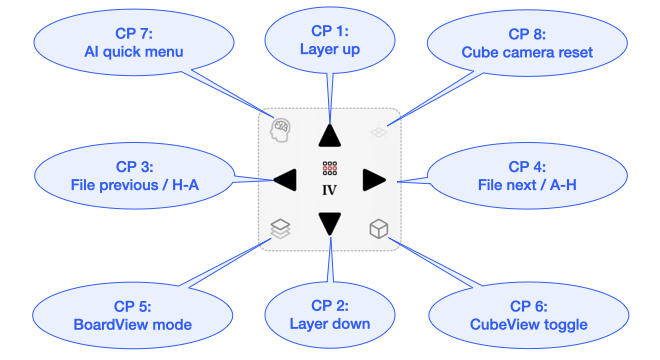
- CP1 / CP2: switch Layer I–VIII.
- CP3 / CP4: switch File A–H.
- CP5: switch the BoardView mode.
- CP6: open or focus the CubeView.
- CP7: open the AI menu.
- CP8: reset the CubeView camera.
LayerView and FileView are currently relevant. RankView remains planned.
Menu
The menu groups functions that do not need to be visible as large buttons all the time. GamePad and ControlPad remain responsible for the running game; the menu leads to game management, help, AI, appearance, and settings.
Menu
├── Game
├── Help
├── AI
├── Appearance
└── SettingsA good control routine
- choose the right BoardView mode and slice, usually LayerView first,
- select the piece in the BoardView,
- read the markers and switch slices if needed,
- check the position spatially in the CubeView,
- execute the move in the BoardView.
Common misunderstandings
“I can see the target in the cube, so I can click it there.”
No. The CubeView shows the position spatially, but moves are executed through the BoardView.
“If I switch layers, the position changes.”
No. Only the visible slice changes.
“RankView is already an active control feature.”
Not in this documentation. RankView is planned and will only be described as active once it is visibly implemented.